- Empty cart.
- Continue Shopping
How to design a DIY smart home without a hub using sensors
- Posted on
 Strong Digital
- 0
- Categories: Uncategorized
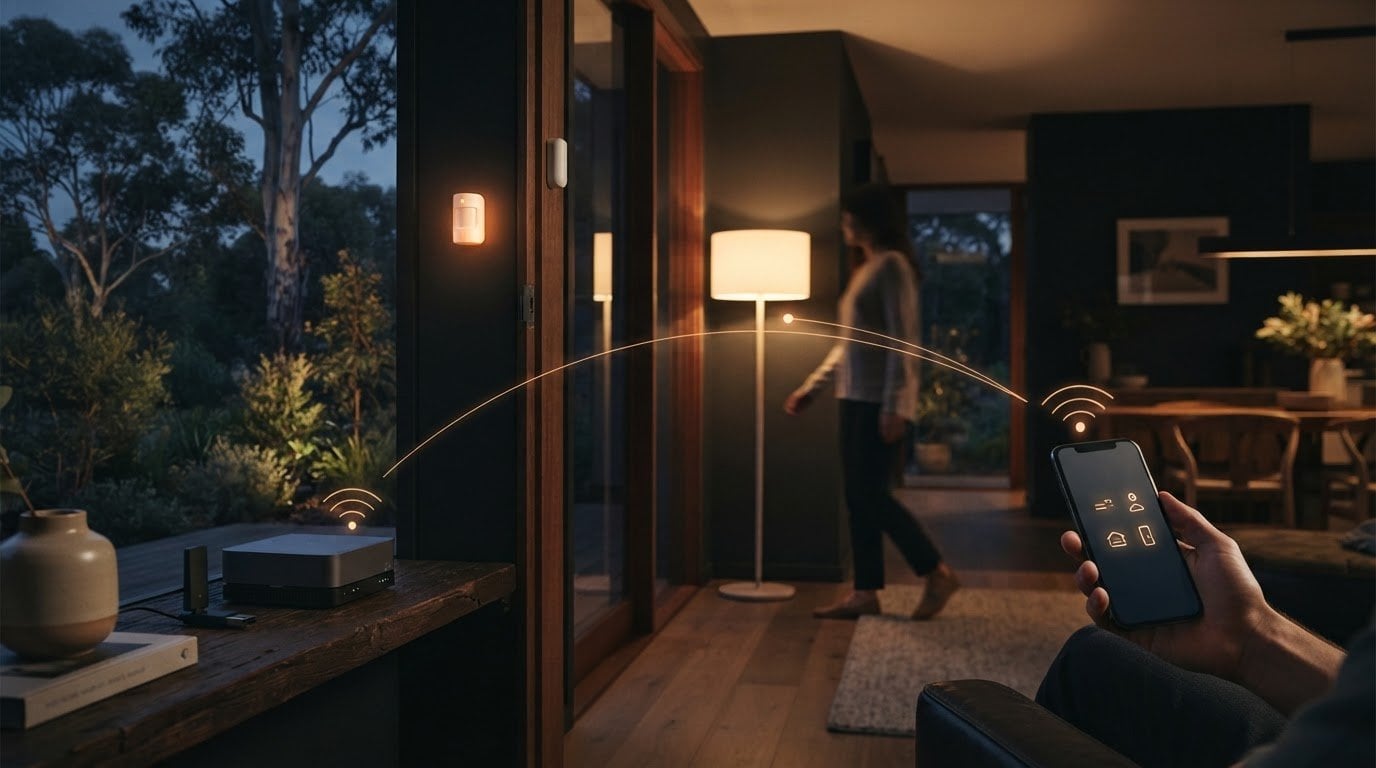
You don’t need a separate smart home hub to automate sensors. A DIY smart home without a hub can use Wi-Fi devices or Zigbee sensors connected to Home Assistant through a USB adapter on a Proxmox server. The key is choosing how your devices communicate and where your automations run.
Building your own setup lets you shape it around your home and routines, rather than adding technology for its own sake. Motion sensors can switch on lights when a room is occupied, while door sensors can trigger an action when an entry opens. It’s a practical way to simplify everyday tasks, one useful automation at a time.
This guide explains why you might build your own system, how motion and door sensors can work together, and how to plan a setup without a standalone hub. You’ll also learn how Wi-Fi and Zigbee fit into the design, helping you choose devices before you buy.
Key Takeaways
- Choose offline bulbs, switches and plugs to suit the routines you want to automate, and consider what should keep working without an internet connection.
- Pair motion and door sensors with clear actions, such as turning on a light when a room is occupied or responding to an entry opening.
- Plan how your devices communicate before you buy: Wi-Fi and Zigbee have different roles in a hub-free setup.
- For wireless lighting and switching control, explore how switch modules and mains-powered switches could fit into your home.
Why build your own smart home?
Start with the routines you want to improve, then choose devices that work together without a dedicated hub. A sensor can trigger a light, while a smart plug can help you monitor the energy use of a connected appliance.
-
Choose offline bulbs, switches and plugs
Choose bulbs, switches and plugs that connect directly to Wi-Fi, then decide which functions need to work without internet access. “Hub-free” doesn’t always mean “offline”: a device may not need a separate hub but may still rely on an app or cloud service. Check its offline controls and supported features before buying. For example, make sure a wall switch remains usable if the app connection drops.
-
Select sensors, relays and plugs
Match each sensor or relay to a specific task, such as switching on lights when motion is detected. A door sensor can trigger an action when an entry opens, while a temperature sensor can provide information for a heating routine. Smart plugs can report how much current connected devices draw, helping you understand their energy use or cut power to charging stations for rechargeable devices and vape gear from retailers like vapeshop.bh. Choose a plug for monitoring or switching according to the function you need.
-
Check Wi-Fi and platform compatibility
Look for Wi-Fi bulbs, plugs, switches and sensors designed to connect directly to a home router. To use Google Home, Amazon Alexa or Apple Home without a hub, check whether the exact device model supports your chosen platform. Compatibility varies: voice control and automation features may differ between devices.
-
Review internet needs and security risks
Check whether setup, app control and automations need internet access or can work locally over your Wi-Fi network. A stable router connection helps devices that depend on network access. For privacy, limit unnecessary app permissions and secure your connected-device network. The National Center for Biotechnology Information notes that smart home hackers often gain access through a network, making network security part of device planning.
Automations using motion and door sensors
Design each automation around a clear event and response. Start with one room or entry, then test the rule before adding devices.
- Choose a routine and write down its trigger, action and condition. For example, motion in a hallway could turn on a light only when the home is occupied. A condition helps prevent the automation from running at an unsuitable time. Keep the first rule simple so you can identify whether the sensor, software or light needs adjusting.
- Place a motion sensor where it detects people moving through the space, rather than every movement nearby. A sensor facing a busy doorway may trigger repeatedly as people pass. Test its position during normal household routines, then adjust its direction or sensitivity using the available settings. Keep the lights accessible through a manual switch, too.
- Use a door sensor to trigger a response when a door opens or closes. For example, it can send a notification when the back door opens while nobody is home. Add a “nobody home” condition only if your automation software can determine occupancy. Otherwise, choose a simpler action, such as switching on an entry light.
- Check how the sensors communicate before building linked rules. Zigbee sensors need a compatible controller or software setup to interact with Wi-Fi lights or switches. Confirm that the devices can exchange the events your automation needs, rather than assuming they work together because each has an app. Test one sensor and one response first. Once that link works, expanding the system is easier.
- Review the automation after you’ve used it at home. If motion keeps triggering lights in an empty room, change the sensor position or rule conditions. If a door notification arrives at the wrong time, refine the occupancy condition. Keep useful actions, remove unnecessary alerts and make sure everyone at home knows how to control the lights manually.
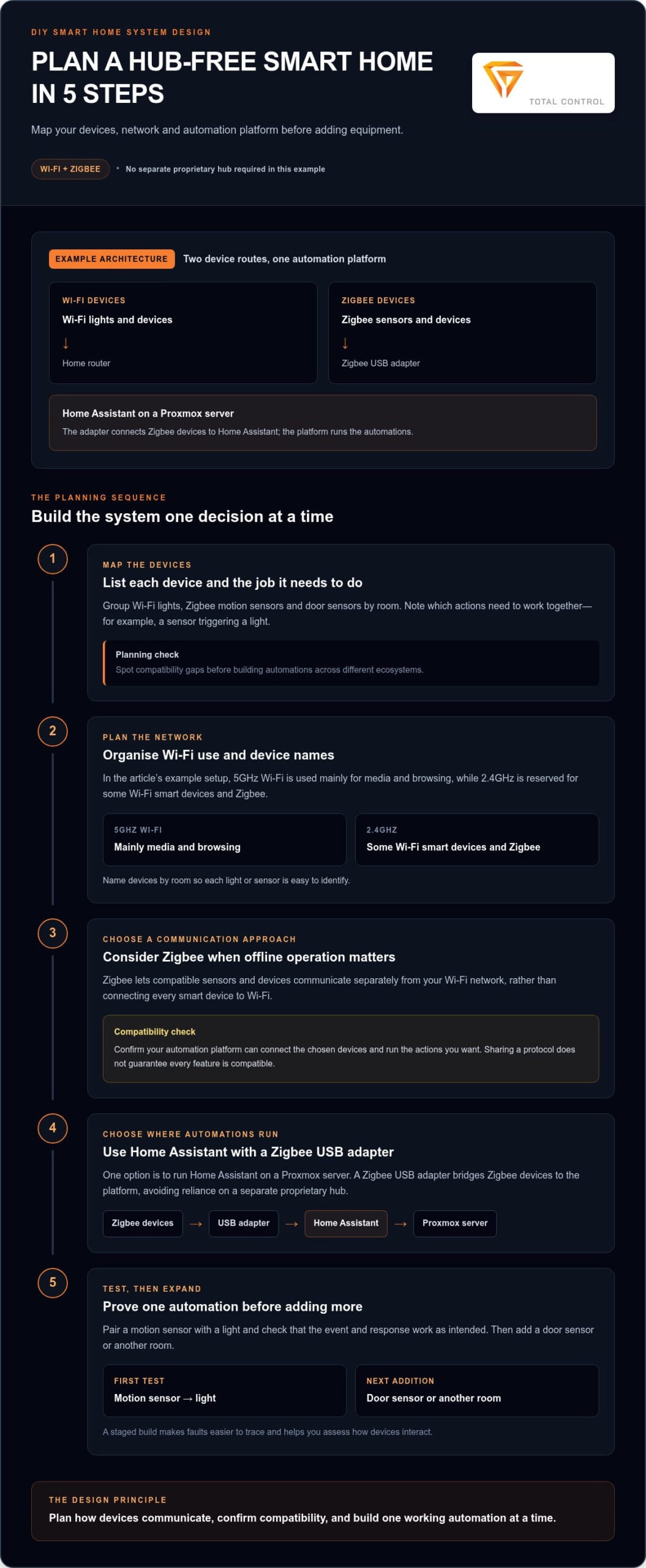
DIY smart home system design
Map the devices, network and automation platform before adding equipment. A clear plan helps Wi-Fi and Zigbee devices work together in a setup that suits your routines.
- List each device and the job it needs to do. For example, group Wi-Fi lights, Zigbee motion sensors and door sensors by room. Note which actions need to work together, such as a sensor triggering a light. This device map helps you spot compatibility gaps before creating automations across different ecosystems.
- Plan your Wi-Fi use around the devices and tasks in your home. The example setup uses 5GHz Wi-Fi mainly for media and browsing, reserving 2.4GHz for some Wi-Fi smart devices and Zigbee. Keep the network details clear as you add devices, and organise names by room so each light or sensor is easy to identify.
- If offline operation is a priority, consider Zigbee devices. Zigbee lets compatible sensors and devices communicate separately from your Wi-Fi network, rather than connecting every smart device to Wi-Fi. Check that your automation platform can connect the chosen devices and run the actions you want. Sharing a protocol doesn’t guarantee that every feature is compatible.
- Choose where your automation software will run. One option is Home Assistant on a Proxmox server, with a Zigbee USB adapter connecting Zigbee devices. The adapter bridges those devices and Home Assistant. This avoids relying on a separate proprietary hub while still connecting Zigbee devices to the platform.
- Build and test one automation before expanding the system. Pair a motion sensor with a light, then check that the event and response work as intended. Next, add a door sensor or another room. This staged approach makes faults easier to trace, keeps the network organised and helps you assess how well the system works as devices interact.
Can you build a smart home without a hub in Australia?
Yes. In Australia, Wi-Fi devices can connect through your home router without a separate smart home hub. The setup depends on how each device connects and where its automation software runs.
- Decide what “without a hub” means for your setup. Wi-Fi lights and plugs can connect directly to a router, while Zigbee devices need a compatible coordinator. That coordinator could be a USB adapter connected to a computer running automation software, rather than a standalone hub. Choose an arrangement that suits your devices and routines.
- Check each device’s connection requirements before building your system. Some Wi-Fi products use an app or cloud service for setup and control; others can work locally through compatible software. Note whether automations need internet access, then decide which actions should continue if your internet connection drops.
- Organise your network for the devices you plan to use. A typical design can reserve 2.4GHz Wi-Fi for compatible smart devices, while 5GHz handles media and browsing. Keep a simple device list by room, and give each light, plug or sensor a clear name in its app or automation platform.
- Test the system in stages. Connect one Wi-Fi light or plug, then confirm its manual and app controls work. Add a sensor and create one automation, such as motion turning on a hallway light. If you use Zigbee, check that the coordinator and software can receive the sensor’s event and trigger the intended action.
- Choose switching hardware to suit the lighting controls you want to keep. Wireless options can add automation while working with existing switches and lights, without rewiring. For lighting control, explore wireless switching options as you plan which circuits to automate.
Gem Wireless: Switch Module Kits
Gem Wireless offers Switch Module Kits for adding wireless control to lighting and switching systems. They suit homes where you want to automate existing switches and lights without rewiring. Mains Powered Switches, Long Range Switches and Switching Modules are also available for planning wireless control around your setup.
Consider these options when your sensor automations need to control lights through a switch, or when you want to add wireless control to existing lighting. Choose the product that fits the switching task and your system design.
Explore wireless switching options for your smart home at gemwireless.com.au.
Choose the next upgrade with purpose
Build your DIY smart home without a hub around the change you want to make next. Start with the switch or light that would benefit most from wireless control, then decide how it should fit into your daily routine. A considered first step helps keep the system practical as you expand it.
For switching projects, Gem Wireless offers Switch Module Kits, Mains Powered Switches and Long Range Switches. Compare the options with your lighting and control needs in mind, then choose the approach that suits your setup.
Contact Gem Wireless about switching options and take the next step towards a more responsive home.
Frequently Asked Questions
What about Thread and Matter?
Thread and Matter are related but different: Matter sets rules for how supported smart devices communicate, while Thread is a wireless networking technology. Matter can also use Wi-Fi or Ethernet, so a Matter device isn’t automatically a Thread device. For a Thread setup, include a Thread border router and confirm that your platform and devices support the features you want to use.
Do Matter smart home devices need a hub or controller?
A separate hub isn’t always necessary, but a Matter device needs a compatible Matter controller for setup and management. The controller may be built into another device or provided by compatible software. Thread-based Matter devices also need a Thread border router to connect with the network. Check the controller and border-router requirements, not just the Matter label, before choosing devices.
What is the difference between Wi-Fi, Matter, Thread and Zigbee smart home devices?
Wi-Fi, Thread and Zigbee describe ways devices connect and communicate. Matter is a standard that helps compatible devices work across supported platforms. A Matter device can use Wi-Fi or Thread, while a Zigbee device needs a Zigbee-capable controller. Before combining devices from different ecosystems, check how they connect and whether your chosen platform supports the functions you need.
How do you set up a hub-free smart home in Australia step by step?
To set up a DIY smart home without a hub in Australia, list the actions you want, such as a sensor activating a lamp. Choose Wi-Fi devices, or select Zigbee or Thread devices with a compatible controller. Confirm that they work with the same app or automation platform, then connect and name them by room. Create one simple rule, test manual controls and the automation, then add devices once it works.
What happens to hub-free smart devices if the internet or Wi-Fi goes down?
A DIY smart home without a hub can respond differently to an internet outage and a Wi-Fi outage. If the router is still running, local automations may continue, while cloud-based app access or voice control may stop. If Wi-Fi itself fails, devices that rely on the network may lose app control and communication. Physical switches retain their usual function, and a local controller can run supported local routines.
Which smart home devices work with Google Home, Amazon Alexa, or Apple Home without a hub?
Wi-Fi bulbs, plugs, switches and sensors can connect without a separate hub when the exact model supports Google Home, Amazon Alexa or Apple Home. Check which functions the model supports.