- Empty cart.
- Continue Shopping
Wireless Light Switch Troubleshooting: The Complete Australian Guide 2026
- Posted on
 Strong Digital
- 0
- Categories: Uncategorized
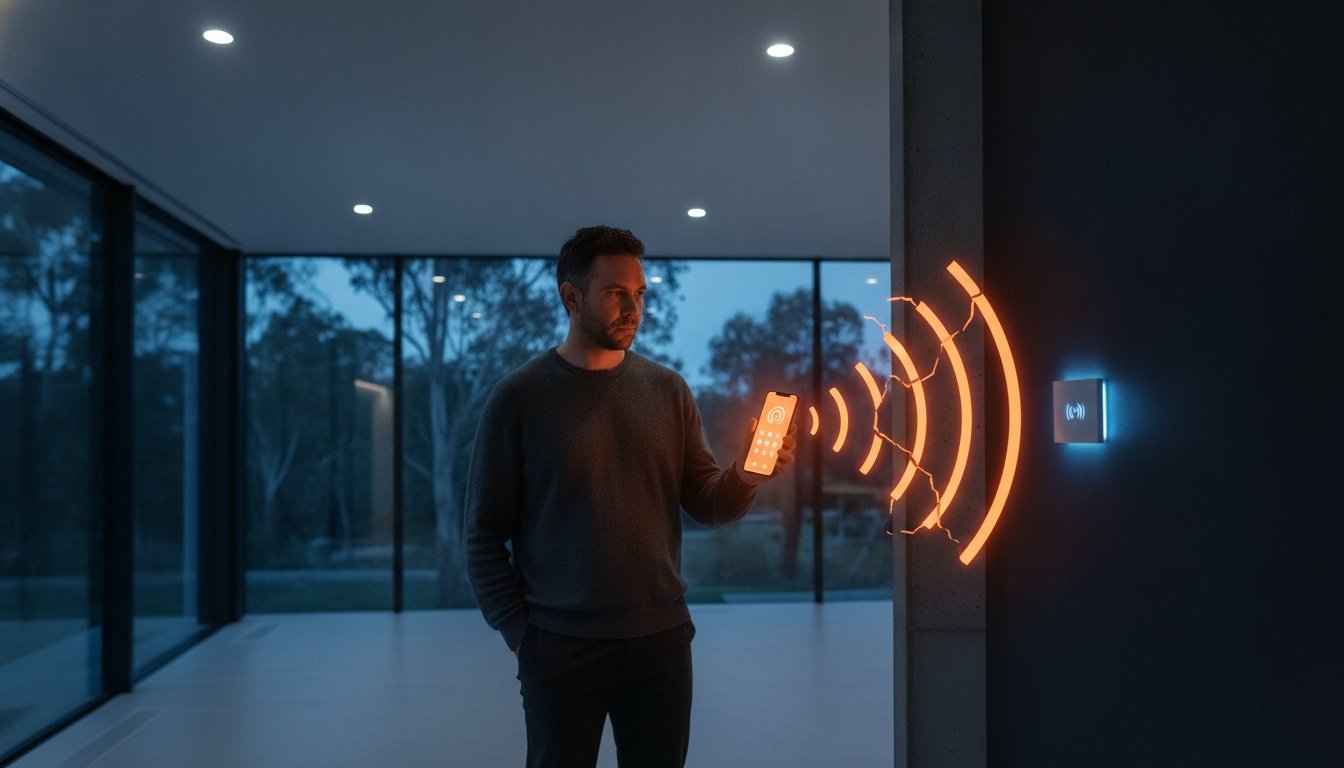
The most reliable piece of technology in your home shouldn’t feel like a roll of the dice every time you walk into a room. If you’re staring at a flickering LED or a switch that only works half the time, it’s easy to assume you have a faulty unit or a dangerous electrical fault. Most of the time, the hardware is perfectly fine; it’s simply struggling to navigate an increasingly crowded digital environment. Effective wireless light switch troubleshooting is less about rewiring and more about managing these invisible signals to restore your peace of mind.
We understand how frustrating it is to deal with intermittent control in a space that’s meant to be seamless. This guide provides a clear roadmap to diagnose signal interference, fix strobing lights, and ensure your setup complies with the 2026 Cyber Security Rules for smart devices. You’ll gain the confidence to identify exactly what’s blocking your connection and learn when a simple reset is enough to bypass a call-out fee. From signal range boosters to pairing protocols, we’re covering everything you need to get your Australian home back in the light.
Key Takeaways
- Identify your system type to pinpoint whether the fault lies in a flat battery, a kinetic mechanism, or the receiver module itself.
- Discover how to clear signal dead zones caused by common Australian building materials and large household appliances.
- Use these wireless light switch troubleshooting steps to stop annoying LED flickering and “ghosting” once and for all.
- Follow our simple proximity testing and power cycling guide to reconnect unresponsive switches in just a few minutes.
- Learn to spot terminal hardware failure and understand when upgrading to a modern switching module is your most efficient path forward.
Common Reasons Your Wireless Light Switch Stopped Working
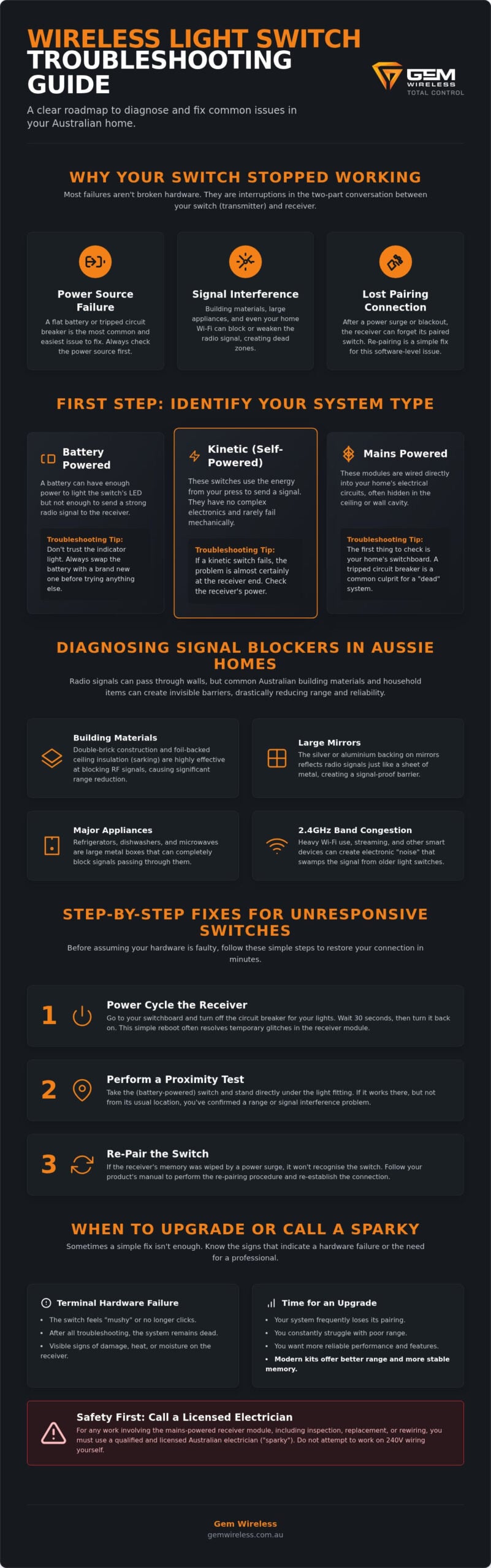
When your lights stop responding, the instinct is to assume the hardware has kicked the bucket. However, effective wireless light switch troubleshooting starts with understanding that your system is a two-part conversation. There is the switch, which acts as the transmitter, and the relay, which acts as the receiver. Most failures happen when this conversation gets interrupted, not because the devices are physically broken. Understanding how wireless light switches work is the first step to narrowing down the culprit without unnecessary stress.
Before you pull apart the wall plate, consider if anything in your home environment has changed. Radio frequency signals are resilient but not invincible. A new piece of furniture, a large mirror, or even a new appliance positioned between the switch and the light can turn a reliable connection into a dead zone. Distinguishing between a genuine hardware failure and a simple signal blockage will save you hours of trial and error.
Battery vs Kinetic vs Mains Powered Switches
Start with the power source. If you have a battery-powered switch, don’t trust the LED indicator on the front. A battery can have enough juice to light a tiny bulb but not enough to send a radio signal to the receiver. Test the voltage or swap the battery before moving on. If the switch feels “mushy” or doesn’t click, it might be a mechanical issue, though this is rare in high-quality units.
Kinetic switches are different. They use the physical energy of your press to generate a signal. These rarely fail mechanically because they lack complex electronics. If a kinetic switch stops working, the problem is almost certainly at the receiver end. For mains-powered modules tucked away in the ceiling, check your circuit breaker first. A tripped fuse is a common, non-technical reason for a “dead” wireless system.
The Pairing Connection: Why Sync is Lost
Sometimes the hardware is fine, but the “handshake” between the switch and the receiver has been forgotten. This often happens after a power surge or a prolonged blackout. The receiver’s memory might reset, leaving it unable to recognise its paired switch. This is a common hurdle in wireless light switch troubleshooting that many homeowners mistake for a terminal fault.
Look for these signs of pairing loss:
- The switch LED flashes normally but the light doesn’t react.
- The light works via a manual override button on the receiver but not the switch.
- Other wireless switches in the same house are functioning correctly.
Pairing loss is almost always a software reset, not a hardware death. You don’t need a new kit; you just need to re-introduce the two devices. If your current hardware makes this process difficult, upgrading to modern switch module kits can provide a more stable, user-friendly connection that holds its memory even during Australian power fluctuations. Older Australian homes with loop-at-the-light wiring may also benefit from a no neutral wireless light switch, which is specifically designed to operate without the neutral wire that many classic properties lack.
Diagnosing Signal Interference and Range Issues
The most common myth in wireless light switch troubleshooting is the “Line of Sight” requirement. While radio frequency (RF) signals prefer a clear path, they are designed to penetrate walls and floors. However, Australian building standards often introduce invisible barriers. Double-brick construction and foil-backed ceiling insulation, known as sarking, act as effective shields that significantly reduce the range of standard modules. If your switch works perfectly in the lounge but fails in the bedroom, you’re likely battling the density of your home’s skeleton.
Household items also cause unexpected signal drops. Mirrors are a frequent culprit because the silver or aluminium backing reflects RF signals like a wall of solid metal. Large appliances like fridges and microwaves create massive physical obstructions. You might find your switch works flawlessly during the day but struggles in the evening. This occurs because the 2.4GHz band becomes congested when the family is home, streaming video or using multiple devices, which can swamp the narrow signal used by older lighting protocols.
Identifying RF Interference in the Home
Electronic noise is a silent signal killer. Cheap LED drivers or aging appliances can leak electromagnetic interference that “blinds” your receiver. If your lights turn on by themselves, you’re likely experiencing the “Ghost Switch” phenomenon. This isn’t a haunting; it’s usually a nearby device emitting a signal on a similar frequency. Ensuring your installation follows home electrical safety guidelines when checking receiver placement helps you identify if a module is too close to a noisy power source.
Maximising Range for Sheds and Outdoor Areas
Sending a signal to a backyard shed or a front gate requires more than standard hardware. Metal junction boxes are Faraday cages that trap signals inside. To fix this, ensure the receiver module or its antenna is positioned outside the metal enclosure. For rural properties or large blocks, standard kits often fall short. Upgrading to long range switches is the most effective solution for outbuildings. Simply re-orienting an internal antenna so it sits perpendicular to the switch can also provide the extra few metres of reach needed for a stable connection. Investing in a reliable wireless light switch kit is often the fastest way to bypass persistent interference issues.
How to Fix Flickering Lights in Your Wireless Setup
Flickering lights are the single most common frustration after a new installation. If your LEDs are strobing like a disco or glowing faintly when they should be off, don’t panic. This isn’t usually a sign of a dangerous fault. Instead, it is a symptom of how modern no rewire lighting control manages power. Because these modules often sit in series with the bulb, they must “steal” a tiny amount of current to keep their wireless radio active. This current can sometimes be enough to partially charge an LED bulb, leading to annoying visual glitches.
To start your wireless light switch troubleshooting, you must distinguish between two types of flickering. “Off-state ghosting” is when the bulb stays dimly lit or flashes every few seconds while the switch is off. “On-state flickering” happens while the light is supposedly at full brightness. If the issue is only with one bulb in a multi-light circuit, the culprit is likely a failing LED driver. If every light on the circuit is acting up, the issue lies with the load balance or the wireless module itself.
Minimum Load Requirements and LED Bypass
Most wireless relays have a minimum load threshold, typically requiring between 5W and 10W of power to operate stably. Modern Australian LED downlights are incredibly efficient, often drawing as little as 3W to 7W. If your total circuit load falls below the module’s threshold, the relay cannot draw enough power to stay “awake” without causing the bulb to strobe.
Installing a load capacitor, often called an LED bypass, is the standard fix for this. This small component is wired across the light fitting to provide a path for the “leakage” current, bypassing the LED chips entirely. It effectively tricks the receiver into thinking there is a larger load present, which stops the strobing immediately. If you’re using ultra-low-wattage bulbs, this bypass is often an essential part of a successful setup. If your wall box also lacks a neutral wire, a purpose-built no neutral wireless light switch solution for Australian retrofits addresses both the power-stealing behaviour and wiring limitations in one compliant package.
Dimmer Compatibility and Phase Cutting
Dimming adds another layer of complexity. Australian homes primarily use trailing edge dimming, which is more compatible with LED drivers. If you’ve installed a wireless module that uses leading edge dimming, or if you’re trying to dim a non-dimmable LED bulb, you will encounter rapid flickering and a distinct humming sound from the ceiling.
Check the packaging of your bulbs to ensure they are explicitly marked as “dimmable.” If they are, and the flickering persists, the wireless module’s dimming profile might be mismatched. Some advanced modules allow you to toggle between dimming modes or set a “minimum dim level” to prevent the voltage from dropping too low. Adjusting these settings often resolves the “humming” and ensures a smooth, flicker-free experience across the entire dimming range.
Step-by-Step Fixes for Unresponsive Switches
When a switch stops responding entirely, the first step is a “Power Cycle” reset. This isn’t just about turning the light off; it involves cutting power at the circuit breaker for at least 30 seconds. This process clears the receiver’s internal cache and forces it to reboot its wireless radio. In many cases of wireless light switch troubleshooting, this simple reboot resolves temporary software glitches caused by minor power fluctuations or signal congestion across your home network.
If the reset fails, perform a “Close Proximity Test”. Unscrew the switch from the wall and bring it within one metre of the receiver module. If the light operates correctly at this range, you’ve confirmed that the hardware is functional and the issue is purely environmental. This test is a safer, more effective way to diagnose range problems than poking around with live wires. It narrows down the fault to signal blockage rather than a broken device, saving you the cost of an unnecessary replacement.
The Fresh Start: Resetting and Re-pairing
Sometimes the connection needs a complete refresh. Most receivers have a small pairing button; pressing and holding this for five to ten seconds will usually clear the memory. You’ll often hear a physical “click” or see a flashing LED to confirm it’s ready for a new handshake. Once cleared, follow these steps:
- Press the pairing button on the receiver once to enter pairing mode.
- Immediately press the desired switch button to send the pairing signal.
- Wait for the confirmation click or light flash from the receiver.
This process is essential when organising multiple switches in a 2-way or 3-way configuration, ensuring every transmitter is speaking the same language as the receiver. If you need to add a second control point without any wiring work, a wireless 2 way light switch kit makes it straightforward to expand your setup without touching a single cable.
Hardware Health Check
Physical inspection can reveal hidden faults that software resets can’t fix. Press the switch and listen for a crisp, mechanical click. If the button travel feels mushy or stuck, the internal spring or kinetic mechanism may have reached the end of its life. For outdoor modules, look for signs of moisture ingress or yellowing of the plastic, which indicates heat damage from the Australian sun. This mechanical check is a vital part of wireless light switch troubleshooting before deciding to replace any hardware. Often, a simple re-seat of the receiver module within the ceiling cavity can improve the antenna’s orientation and restore a lost connection.
If your current hardware continues to lose its pairing or feels unreliable after these steps, it might be time for an upgrade. You can browse our professional switch module kits to find a more robust solution designed for Australian conditions.
When to Replace Your Hardware or Call a Sparky
Sometimes, even the most thorough wireless light switch troubleshooting reaches a point where the hardware itself is the problem. If you’ve performed the proximity tests and power cycles mentioned earlier with no success, it’s time to look for physical signs of failure. In Australia, our electrical systems face unique challenges, from extreme summer heat to sudden voltage spikes during intense tropical storms. These environmental factors can degrade internal components over time, leading to a system that is no longer safe or functional.
Legally, you must remember that while you can swap batteries or re-pair a switch, any work involving hard-wired components must be performed by a licensed professional. Under the AS/NZS 3000:2018 wiring rules, installing or replacing a wireless relay module requires a Certificate of Electrical Safety. To save money on a call-out fee, prepare a brief for your electrician. Tell them exactly which wireless light switch troubleshooting steps you’ve already tried. This prevents them from repeating your work and helps them get straight to the replacement or fault-finding.
Signs of a Blown Wireless Receiver
Physical red flags are non-negotiable. If you notice a burnt plastic smell, visible scorching on the module, or if the receiver feels hot to the touch, turn off the circuit immediately at the mains. A common failure is the “Internal Relay Weld.” This happens when the internal contact points fuse together, causing the light to stay permanently on regardless of what the switch tells it to do. This is often caused by a power surge or by using a bulb that exceeds the module’s maximum wattage rating, causing the relay to fail under the load.
Upgrading for Better Reliability
If your old system is dead, repair is rarely the best path forward. Technology has moved on significantly since the early days of smart lighting. Upgrading to a modern wireless light switch kit is often more cost-effective than trying to source legacy parts or paying for complex diagnostic hours. Modern 433MHz systems provide superior stability compared to older Wi-Fi modules because they don’t compete for bandwidth with your home internet or streaming devices.
Gem Wireless modules are specifically designed for the Australian environment. They feature higher surge protection and are built to handle the specific load requirements of modern LED drivers. By choosing a robust, purpose-built switching module, you ensure that your lighting remains seamless and friction-free. This approach effectively future-proofs your home against the signal drops and hardware fatigue that often plague cheaper, generic alternatives.
Restore Seamless Control to Your Home
You now have the practical tools to handle wireless light switch troubleshooting without the stress of a mystery fault. Most issues, from signal drops caused by double-brick walls to the annoying strobe of a low-wattage LED, are manageable once you understand how radio frequencies interact with your space. By following the diagnostic steps we’ve covered, you can distinguish between a simple pairing reset and a genuine hardware failure that requires a professional sparky.
If your existing system continues to struggle, the most efficient path forward is often a hardware upgrade designed specifically for our local environment. As an Australian-owned and operated business, we specialise in no-rewire technology that simplifies your home upgrades. Our long-range modules are built to reach sheds and garages where generic kits typically fall short. Browse our reliable Australian Wireless Switch Kits today to find a robust, long-term solution. You’ve done the hard work of identifying the problem; now it’s time to enjoy a home that works exactly as it should.
Frequently Asked Questions
Why does my wireless light switch work sometimes but not others?
Intermittent operation is usually a sign of environmental signal interference or a battery that’s beginning to fade. When a battery’s voltage drops, it may still light up the switch’s LED but lack the power to send a consistent radio signal. Large metal objects like fridges or mirrors can also block the path. Moving the switch even a few centimetres can often bypass these invisible dead zones and restore a reliable connection.
How do I fix flickering LED lights connected to a wireless switch?
Flickering typically occurs when your LED bulbs don’t meet the minimum load requirement of the wireless relay module. Because these modules “steal” a tiny bit of current to stay powered, they can cause highly efficient LEDs to strobe or glow. You can resolve this by installing a load capacitor, often called a bypass, across the light fitting. This absorbs the excess current and provides a stable, flicker-free experience for low-wattage lighting.
Can I change the battery in my wireless light switch?
Yes, most wireless switches allow you to swap the battery by gently popping off the front cover or accessing a rear compartment. Common types include CR2032 or A23 cells, which usually last between two and five years. If you have a kinetic switch, however, there is no battery to change. These models generate their own power from the physical press of the button and are designed to be maintenance-free for their entire lifespan.
Why did my wireless light switch stop working after a power cut?
Power surges during a blackout or when the mains power returns can occasionally scramble the receiver’s internal memory. This doesn’t mean the hardware is broken; it simply means the receiver and the switch have lost their digital “handshake.” You can usually fix this by performing a quick power cycle at the circuit breaker. If that fails, a fresh re-pairing sequence will re-introduce the two devices and get your lights working again.
How far can a wireless light switch signal actually reach through walls?
Standard wireless switches generally offer an indoor range of 20 to 30 metres, though this is heavily affected by Australian building materials. Double-brick walls and foil-backed ceiling insulation act as shields that significantly reduce signal strength. If you’re trying to control lights in a distant shed or through several rooms, long-range switches are the better choice. These are specifically engineered to penetrate dense barriers that standard kits can’t handle.
What causes a wireless light switch to turn on by itself?
Unintended activation is almost always caused by radio frequency interference from a nearby device using a similar frequency. This “ghost switching” can happen if a neighbour has a similar system or if a nearby appliance is leaking electronic noise. To fix this, clear the receiver’s memory by holding the pairing button until the LED flashes. Once cleared, re-pair your switch to generate a new, unique security code that won’t be triggered by outside signals.
Do I need an electrician to fix a wireless light switch issue?
You can safely handle signal testing, battery changes, and re-pairing procedures without professional help. However, if the fault is inside a hard-wired receiver module tucked in your ceiling, you must call a licensed sparky. Australian law requires a qualified professional for any work involving mains power. This ensures your home remains compliant with safety standards and that your insurance coverage stays valid if you ever need to make a claim.
How do I re-pair my wireless switch to the receiver module?
Re-pairing involves pressing the physical button on the receiver module to enter “learning mode” and then pressing the switch button to sync them. This is a core part of wireless light switch troubleshooting when a connection is lost after a power surge. Most modules will click or flash an LED to confirm the new link is established. Always check your manual first, as some models require you to clear the old memory before they’ll accept a new pair.
DIY electricalhome improvementlight switch repairsignal interferencesmart homesmart lightingtroubleshooting guidewireless light switch